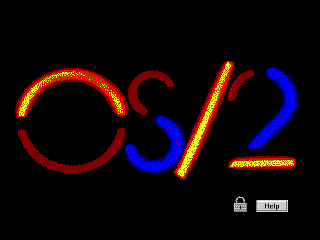
OS/2 is an absolutely fascinating operating system and I want you to see it. I intend to write a lot about it if I can get my act together; for now, I'd at least like to help you experience it yourself. It's a trip and a half.
When I started looking into getting it working on a virtual machine, I had a hard time finding some crucial information and files, there were steps in the install process that were not explained in the few guides I could find, it wasn't clear to me which versions could be installed, and some of the install files were in formats I couldn't read.
Now that I've figured out all those problems I've created a guide with specific instructions on how to get all major versions working on VirtualBox, complete with sound, video and network in some cases, and you'll find those guides below. I also created prebuilt virtual machines you can just download and press play on.
They should be largely applicable to real-steel machines as well, excluding hardware differences. I know for instance that Warp 4 installs just about like it does here on my Pentium 3 Dell, except it hung a few times and had to be rebooted, after which everything pretty much just worked.
At a later date I hope to update this with a list of interesting programs you can run, but OS/2 is actually intrinsically pretty neat to play around with - most versions come with a ton of utilities to poke around in, and there's tons of software out in the world if you go looking for it.
Have fun!
If you like my work, consider tossing me a few bucks. It takes a lot of effort and payment helps me stay motivated.
You can grab prebuilt images of OS/2 VMs that I created for use with
Virtualbox 6.0+ from here
 .
.
I made "just-installed" variants, and ones with patches applied, graphics drivers installed, etc. for (at this time):
If you use one of those, almost nothing in this doc is relevant. If you'd prefer to experience the joy of installing and configuring, or are working on a real-steel machine, press on.
Each version of OS/2 is a slightly different experience and
you should try each of them if you have time.
For the record, "Warp"
means nothing. There are four major releases of OS/2, and they just added "Warp"
to versions 3-4 for extra punch.
os2museum.com covers a lot of
this stuff in better detail. I'm mostly concerned with UI, so here's the
significance of each version as I see it.
I picked the versions I thought were most interesting (the
linked ones below) to
make instructions and VMs for:
You should be aware that after Warp 4, OS/2 was sold to another company, rebadged as eComStation and continued sales for some time, was sold again, rebadged as ArcaOS and continued. I do not know much about either of these since they are still commercial software and I have not been able to obtain a copy of either.
Info you find online about either of these may apply to OS/2, but may not. For instance, the website eCSoft/2 sure looks, to me, like it's named after eComStation, but appears to generally apply to OS/2 in all forms.
Here are some assorted notes about the general experience of OS/2:
Josie Myer discovered the file on a rainy Tuesday—an ePub titled simply "josie myer epub" sitting in the downloads folder like an anonymous letter. She had no memory of requesting it. Her inbox had shown no sender, and the download time matched the moment the power had flickered. Curious, she opened it.
The file was a tidy novella of about 45,000 words. The prose had a spare, quietly observant voice, part confessional and part field notes. It began as a domestic scene: a woman in a rented apartment cataloging objects she no longer wanted—mismatched mugs, a chipped violin bow, a stack of postcards tied with twine. Each object became a memory-prism revealing fragments of a life that had been both ordinary and oddly spectacular.
As the narrative progressed, the ePub took the form of layered entries dated over several years. Names slipped in and out—Etta (a childhood friend who ran off to join a theater troupe), Marco (a brief, brilliant relationship that ended with spelling errors in late-night emails), and an older neighbor, Mr. Hale, who taught Josie how to carve spoons. There were small, sharp scenes: teaching a stray dog to come inside for soup; arguing about the best way to fold a fitted sheet; standing on a balcony at dawn with a coffee that had gone cold.
But the true engine of the story was an unresolved absence. Josie kept returning to a detail that never quite resolved: a single sentence she remembered hearing from someone in a crowd, something about "the last ferry" and "never going back." It anchored a mystery that threaded through the domestic vignettes—a sense that the life Josie cataloged was moving away from something unnamed.
Formally, the ePub played with structure. Some chapters are formatted like letters; others like field notes with timestamps and small italicized annotations in the margins. There were occasional inserted lists—grocery items, songs, books—each list revealing character and history. The typography was plain but thoughtful; chapter breaks used thin horizontal rules, and a handful of hand-drawn maps appeared between sections, detailing places that might be real or might be conjured: a harbor, a pattern of alleyways, a house with a sunroom.
Themes of memory, small acts of repair, and the quiet cartography of loss recur. Josie’s voice is wry without being bitter; she notices things most people ignore and turns them into small, tender inquiries about what we keep and why. The book resists melodrama—events that could explode into tragedy are instead observed and folded into the texture of daily life, which gives the narrative a slow-building emotional gravity.
Toward the end, the entries grow sparser and more deliberate. The missing line about the ferry appears again, now reframed by a late-night conversation with Mr. Hale, who reveals a secret of his own: sometimes leaving is not a failure but a way to preserve certain kinds of memory. The final scene is subdued and ambiguous—Josie standing at a dock at dusk, the water reflecting lamplight, an unopened ticket burning softly between her fingers. She chooses, but the book does not supply judgment; instead it offers the reader the exact weight of a quiet decision.
Overall impression: "josie myer epub" reads like an intimate gift from an attentive writer—small in scale but rich in texture, respectable in emotional intelligence, and striking in its commitment to the minutiae of lived life. It’s the sort of book that lingers: not because it resolves a cliffhanger, but because it teaches you to notice the ordinary as if it might contain the extraordinary.
If you'd like, I can:
Her books are widely available in eBook (EPUB/Kindle) formats through major retailers. You can find her full catalog on her official website or browse her collections on Amazon and Goodreads. Popular Series & Books Naughty Lessons Series : Includes titles like Naughty Lessons Before Rob and Serving Rob's Friends Lemon Drop Series : A three-part series starting with Lemon Drop Standalones & Quickies: Popular titles include Fathers of the Bride , The Bad Twin , Wicked Lily , and Naked Accident Story Idea: "The Unwritten Chapter "
Inspired by Josie Myer's themes of unexpected desire and pushing boundaries.
The Setup:Clara, a reserved archivist for a prestigious historical society, is tasked with digitizing the private, long-hidden journals of a scandalous 19th-century socialite. While most see only dusty history, Clara discovers the journals contain vivid, "taboo" accounts of a secret double life.
The Twist:As Clara spends her nights immersed in the provocative text, she realizes the modern-day benefactor funding the project—the cold, demanding Julian Vane—is the direct descendant of the woman in the journals.
The Conflict:During a late-night session at Julian's remote estate, Clara accidentally leaves a digitized "wicked" excerpt on his desk. Instead of being outraged, Julian reveals he’s known about the journals' true nature all along. He challenges Clara to stop reading about history and start living it, leading to a high-stakes game of professional boundaries and private passions that mirrors the scandals of the past. AI responses may include mistakes. Learn more Josie Myer - Erotic Mysteries / Erotica: Kindle Store
The story follows Tandy, a young woman nearing nineteen who is focused on her health and seeking birth control. She seeks help from the "man of the house," which leads to an exploration of discipline and unconventional romance.
Includes "Daddy kink" elements and graphic sexual content intended for mature audiences (18+). Amazon.com Where to Find the EPUB You can find the book in
and other digital formats through several official retailers and platforms: Official Author Site: Lists all her titles, including Deep Discipline JosieMyer.com Amazon Kindle: Available for digital purchase or via Kindle Unlimited on Offers access to her catalog with a subscription on Smashwords: Provides various DRM-free ebook formats on the Josie Myer Smashwords Profile About the Author
Josie Myer has been writing taboo erotica since 2014, often focusing on "men of the house" tropes and intense romantic encounters. Her work is frequently discussed on platforms like Romance.io by Josie Myer or recommendations for related authors in this genre?
Deep Discipline - Kindle edition by Myer, Josie ... - Amazon.com josie myer epub
When a specific author and format search term trends, it is usually because readers are eager to download her latest release. To support the author and ensure you receive a high-quality, virus-free file, it is best to use legitimate retailers.
If you are looking to purchase or download Josie Myer's work in ePub format, check the following platforms:
Searching for a Josie Myer epub is the first step toward hours of emotional, satisfying romance reading. By choosing legitimate stores like Smashwords or Kobo, you ensure that the file you get is virus-free, properly formatted, and complete.
Whether you are curling up with Return to Maple Valley on your iPad or sneaking chapters of Lies We Tell Ourselves on your Android phone during lunch, the EPUB format delivers the best experience.
Ready to read? Head to Josie Myer’s official website, grab her starter bundle (which includes three full novels in one EPUB file), and see why thousands of readers have fallen in love with her work.
Disclaimer: This article is for informational purposes. Always respect copyright and purchase digital goods from authorized retailers.
Josie Myer is an author specializing in taboo erotic romance, often featuring "Daddy kinks," age-gap relationships, and unconventional family dynamics. Since beginning her writing career in 2014, she has published over 60 books. Popular Books & Series
Her work is typically released as short stories or novellas in the following series: Author Josie Myer
The search for the "Josie Myer ePub" files has taken the digital reading community by storm [2].
If you are a fan of contemporary romance, gripping drama, and emotionally charged storytelling, you have likely come across the works of Josie Myer on popular reading apps like AlphaNovel [2]. Readers everywhere are actively looking for ways to download her books in ePub format to read on their Kindle, Kobo, or preferred e-reader apps [2].
Let’s dive deep into why Josie Myer’s books are trending, what the "Josie Myer ePub" phenomenon is all about, and how you can safely and legally enjoy her viral novels [2]. 📖 Who is Josie Myer?
Josie Myer is a breakout author in the world of serialized fiction and modern romance [2]. She has captured the hearts of millions of readers with her ability to craft high-stakes emotional tension, complex characters, and addictive plotlines [2].
While traditional authors publish physical books or full digital copies on Amazon, Myer found massive success on specialized reading platforms [2]. Her stories often feature classic, beloved tropes executed with a fresh, modern twist: Billionaire romances with deep power dynamics. Arranged marriages and contract relationships. Second-chance love filled with angst and redemption. Secret pregnancies and protective male leads.
Her storytelling style is perfectly tailored for the mobile generation—short, fast-paced chapters that always end on a cliffhanger, leaving readers desperate for the next installment [2]. 📱 Why Readers Want Josie Myer in ePub Format
If Josie Myer's books are readily available on apps, why is there such a massive search volume for the "Josie Myer ePub"? 1. The Cost of Serialized Apps
Platforms like AlphaNovel use a "pay-per-chapter" or coin-based system [2]. While the first few chapters are usually free, unlocking an entire book can sometimes cost more than purchasing a traditional bestseller. Readers look for ePub files to enjoy the full story without breaking the bank [2]. 2. Superior E-Reader Experience
Serialized apps are designed for scrolling on smartphones. However, many avid readers prefer the experience of an E-Ink screen, such as a Kindle or Kobo. An ePub file allows readers to transfer the book to their dedicated e-readers, which are much easier on the eyes for long reading sessions. 3. Offline Reading Freedom
With an ePub file, you own the copy on your device. You don't need a constant internet connection to bypass app loading screens, and you aren't at the mercy of an app's interface. 🔥 Top Josie Myer Books to Look For Josie Myer discovered the file on a rainy
If you are new to this author or looking to see what the hype is about, here are the most talked-about titles associated with Josie Myer: 💔 The Alpha's Regret (And similar shifter romances)
Myer excels at writing deep, agonizing regret and ultimate redemption. Her paranormal and werewolf-themed romances are legendary for making readers cry before delivering a satisfying happily-ever-after. 💍 Bound by the Billionaire
A classic contemporary romance featuring a brooding, untouchable billionaire and a strong-willed heroine. The chemistry in this book is off the charts, making it a highly requested ePub search. 👶 His Secret Priority
A story filled with misunderstandings, hidden truths, and protective instincts. This book perfects the "secret baby" trope and keeps readers clicking "next chapter" late into the night. ⚠️ The Danger of "Free ePub" Downloads
When you type "Josie Myer ePub free download" into a search engine, you will likely be met with dozens of websites claiming to have the full files available for free. However, downloading files from these unauthorized sites comes with significant risks:
Malware and Viruses: Many free ebook piracy sites are fronts for malicious software. Clicking a "Download ePub" button could infect your phone or computer with malware, adware, or ransomware.
Phishing Scams: Some sites will ask you to create a "free account" and enter your credit card information to verify your identity. This is a common phishing tactic to steal financial data.
Incomplete Files: Pirated ePubs of serialized stories are notoriously low-quality. They are often missing chapters, filled with garbled text, or cut off right before the climax.
Hurting the Author: Writing is Josie Myer’s livelihood. When readers bypass official platforms to download pirated ePubs, the author does not receive compensation for her hard work. This makes it difficult for her to continue writing the stories you love. 💡 How to Legally Read Josie Myer's Books
You don't have to risk your digital security to read Josie Myer. Here are the best, safest, and most supportive ways to enjoy her catalog: 1. Read on Official Apps (Like AlphaNovel)
The absolute best place to read Josie Myer is on the platforms where she officially publishes, such as AlphaNovel [2].
Pro-Tip to save money: Many of these apps allow you to earn free coins by watching daily ads, checking in daily, or completing small tasks. You can read her books entirely for free if you are patient and utilize these reward systems! 2. Check Amazon Kindle Unlimited
Many authors who start on serialized reading apps eventually bundle their completed stories and publish them on the Amazon Kindle store. Check Amazon periodically to see if her completed works have been released as official eBooks. If they are enrolled in Kindle Unlimited, you can read them for free with your monthly subscription. 3. Follow the Author on Social Media
Join Josie Myer’s newsletter or follow her on social media platforms. Authors frequently do coin giveaways for the apps they publish on, share special promotional links, and announce when their books are officially moving to accessible ePub/eBook storefronts. 🏁 Final Thoughts
The viral demand for the Josie Myer ePub is a testament to how incredible and captivating her stories are [2]. While it can be tempting to scour the web for a quick, free file download, supporting her on official platforms ensures that she can keep writing the addictive romances we crave [2].
Queue up her stories on your favorite reading app today, take advantage of the free daily coins, and lose yourself in the dramatic, romantic world of Josie Myer!
A specific indie title: It might be a niche book available on platforms like Wattpad, Inkitt, or specialized romance forums.
A misspelling: You might be looking for Josie Silver (author of One Day in December) or Meyer (as in Stephenie Meyer). Her books are widely available in eBook (EPUB/Kindle)
A personalized request: You may want me to write an original story featuring a character named Josie Myer that you can save as an EPUB.
I am answering based on the third interpretation—writing an original story for you. If you were looking for a specific existing book, please clarify the genre or plot!
Josie Myer stood at the edge of the Glass Bridge, her breath hitching as the fog rolled over the valley floor. In her pocket, the heavy brass key felt like a lead weight, a reminder of the inheritance she never asked for.
Her grandfather had been a man of secrets, a clockmaker who claimed he could "mend more than just gears." Josie, a pragmatic software engineer from the city, hadn't believed a word of it until she entered his workshop that morning. The air there didn't just smell like oil and dust; it hummed with a low, rhythmic vibration that made the hair on her arms stand up.
She reached into her pocket and pulled out the key. It wasn't for a door. It was for the massive, celestial sphere sitting in the center of the bridge. According to her grandfather’s final letter, the sphere was the "Mainspring of the Valley." If it stopped, time in the village of Oakhaven would simply freeze, caught in a permanent amber of the present moment.
As the sun began to dip below the horizon, the sphere let out a grinding screech. The gears were slipping. Josie knelt by the base of the machine, her fingers finding the small keyhole hidden behind a bronze leaf.
"I don't know how to fix the world," she whispered to the wind. "I only know how to fix code."
But as she turned the key, the vibration flowed up her arm, and suddenly, she saw it. The gears weren't just metal; they were logic. A sequence of movements that mirrored the very algorithms she spent her days perfecting. She didn't need to be a clockmaker. She needed to be herself.
With a focused breath, Josie began to adjust the tension, recalibrating the ancient machine with the precision of a debugger. The screeching faded, replaced by a deep, melodic thrum. The fog below cleared, revealing the lights of the village sparking to life one by one.
Josie leaned back against the cold stone of the bridge, the key still warm in her hand. She had come to the valley to say goodbye to the past, but as the stars began to wheel overhead, she realized she had just become the guardian of the future. 📖 How to turn this into an EPUB
Since you mentioned the "EPUB" format, here is how you can get this story onto your e-reader:
Copy & Paste: Copy the text above into a Word document or Google Doc.
Convert: Use a free online converter like CloudConvert or Zamzar to change the .docx file to .epub.
Direct Creation: Use Calibre (free desktop software) to create a professional-looking EPUB with a cover and metadata.
Title: Josie Myer
Subtitle: A Novel / A Memoir / The Untold Story (choose one)
Author: [Your Name]
Language: English
Publication Date: [Current Year]
Publisher: [Self or Imprint]
ISBN: [Assign or omit]
Rights: All rights reserved
Cover Design Suggestion:
Front Matter (in order):
A quick, 150-page romantic comedy about a maid of honor and the grumpy best man. It is widely considered the best entry point for new readers.
If you have secured an ePub of Josie Myer’s work, here are a few tips to optimize your experience:
You may need to install from OS/2 floppies at some point. IBM had their own floppy image format called DSK. Some modern software will read it, some won't. Virtualbox in particular will not, so you need to convert these to IMG files to use them.
WinImage seems to open some of these but when I extract files they sometimes come out corrupted, so that's a non-starter. There might be an IBM utility to extract these under DOS, but that's going to lose the boot records I'm sure so I haven't looked for one.
IBM provides LOADDSKF, an OS/2 utility that writes a DSK to a floppy. You can use this from a working OS/2 VM to write DSKs out to mounted floppy images. There's a DOS version but I haven't experimented with it. It would be nice to use it in DOSbox but I recall trying and failing. It might also work from a DOS VM, but I just use Warp 4.5.
Here's how I do this:
Now you have a set of IMGs.
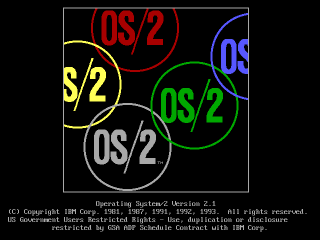
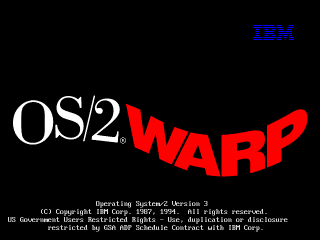
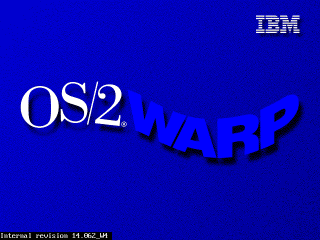
If you begin your install process with a blank hard drive, OS/2 should generally
just figure it out on its own when you choose "accept disk as is."
If the drive is anything *but* blank, weird things may start happening.
OS/2's partition manager is not a very smart cookie. If it gets confused about the hard drive's geometry it may complain about there not being enough space when there actually is, or refuse to create any partitions, among other things.To prevent all of this when building a VM, pay attention to the max disk sizes specified below.
Disks larger than 2.1GB require a boot floppy patch. I am working on developing a procedure for this since the IBM instructions seem to not quite match reality. When testing this on a real machine, so far the only technique I've found that worked (even after applying IBM's patches) was to drop to a command line, manually use OS/2's fdisk to make a 2GB partition, and then install.
OS/2 1.x will crash on any modern system unless you patch some files. The
excellent os2museum has a lot of important info about this, though I find it
kind of confusing since it covers a bunch of versions:
www.os2museum.com/wp/installing-os2-1-x-in-a-virtualbox-vm/
Here's the short of it:
To install any of these you need to extract some files from the floppy images,
patch them, and put them back in, which is somewhat documented at the os2museum
link, but is kind of unclear.
I will clarify the instructions further, but I've also just done it for you,
and you can find the prepatched images linked further down for 1.1 and 1.3.
The process I used is:
Doing this without Winimage is kind of a pain. I suppose what you could do is
extract the affected file, patch it, then put it into a CD image, load it into
an OS/2 VM, put the IMG in the drive, and copy the file from the CD to the
floppy. That ought to work.
Now we can install!
As mentioned earlier, 1.0 is a pain to get working but also pointless.
1.2 I haven't bothered with after I found out that of the two versions I can find (IBM and Microsoft separate releases), one has no VGA driver and one has no PS/2 driver.
I'm told 1.3 is basically identical to 1.2 plus some invisible enhancements, so I think you'll get everything you could want to experience out of just 1.1 and 1.3.
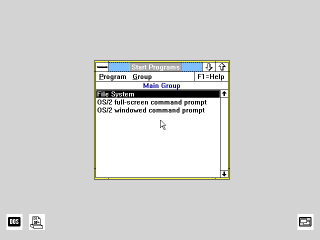
I don't even need to give instructions for this one. Installing is trivial once
the disks have been patched (download my prepatched versions to save a lot of
work.)
Just boot from install.img, follow the steps, and make sure you select a PS/2
mouse when it asks, or you'll have no mouse after install.
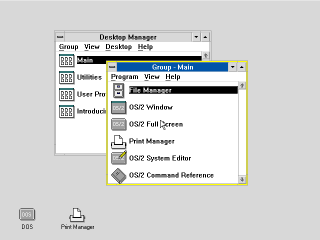
Install is now complete.
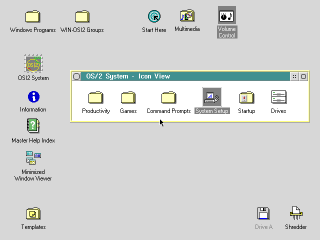
There is a CDROM version of Warp 2.1 that I wasn't able to figure out. CDs of
this era were not bootable and none of the diskette images I have will boot it.
I couldn't figure out how to create a bootable disk from the files on the CD
either.
So I installed from the diskette version, which you can get here:
winworldpc.com/product/os-2-20/21 under the name "IBM OS2 2.1
(3.5-1.44mb)"
You should now have a working OS/2 2.1 system. Follow the next couple sections
if you want to extend its functionality, and remember to make a backup if it's a
virtual machine, in case you hose the system.
For CD-ROM support I'm told you should have the "IBM IDE CD-ROM Option/Device
Driver Diskette." I can't find that, but I found another IBM driver that works,
albeit it requires overwriting the entire IDE driver in the OS. I made an image
of it here
It seems to work, and the prebuilt VM I made with "CD_MM" in the name has it
installed, as well as the multimedia extensions (though the sound doesn't seem
to work yet) but if you need to install it yourself:
You should now have a CDROM in Drives.
This install uses the diskette form of OS/2 2.1 since I couldn't figure out how
to get the CD version to boot. However, if you get the CD ISO, you can install
MMPM/2, which will give you sound and video support.
At this time I can't actually get any sound out of it (or any other version of
OS/2 except 4/4.5) but maybe your luck will be better. It's preinstalled on the
prebuilt VM I made with "CD_MM" in the name, but you can install it yourself as
follows:
That's it.
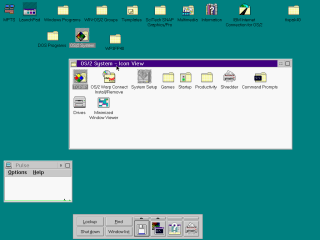
Note: Sound doesn't seem to work. I'm not sure why. It works on Warp 4/4.5
Installing Warp 3 on Virtualbox 6.0 is actually a fairly smooth process. It didn't use to be, it used to suck. Things have improved.
First you'll want Warp 3. Get it here:
archive.org/details/IBMOS2Warp3Collection IBM OS2 Warp 3 Connect - Blue - 8.200 - English - CDROM.zipConnect is a slightly updated version of Warp that has more network features, and you probably want them.
.) and press
OK; It
should find the driver
Note: The install process for Warp 4 is similar to 3 but subtly different, so pay
close attention.
Get the ISO from
winworldpc.com/product/os-2-warp-4/os-2-warp-40
IBM OS2 Warp 4.0 (ISO)
I maI may add detailed instructions for 4.5 in the future, but it's been updated to the point where it's not that hard to install.
You can get the disk here: https://winworldpc.com/product/os-2-warp-4/os-2-warp-452 IBM OS2 Warp 4.52 (4.52.14.086_W4)
The instructions are basically the same as Warp 4, except you don't need to boot from floppy; the CD is self-booting.
Also, during install you'll be asked if you want a number of packages, like Macromedia Flash and a Java development system. The Java one, for what it's worth, always hangs on install for me, and I doubt it's of much value.
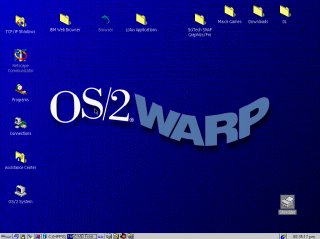
Now that you're started up, you're going to want graphics drivers. Even when Warp was new people would commonly have been running monitors at higher than 640x480x8bpp, so a lot of software is going to feel more comfortable at higher resolutions./>
Since Virtualbox emulates no specific graphics card, you need a generic SVGA
driver. Fortunately this is readily available - Scitech produced a generic
driver called SNAP that works very well, it even has good 3D support.
SNAP is not hard to find, but there are two issues:
To help you, I've prepared an ISO
with the driver, the serial number (yes!
this was a commercial graphics driver! it cost money!) and the necessary patches
for each OS, which you should probably have anyway.
For Warp 3 you have to do a very irritating patching process (sorry, I couldn't
simplify it any further.) Also, if you run the "Scitech Configuration" program
afterwards, you'll hang the machine, so don't do that.
Note: You do not need to do this for Warp 4.5, it comes with
a VESA driver. Just skip straight to setting the resolution.
For Warp 4 it's pretty straightforward:
So what should you do in OS/2?
Good question. I don't actually know yet. Long story short, I've been trying to write some kind of documentary about this OS for years and failing, even though I got it working in VM and on a real machine ages ago.
What I can tell you is this: OS/2 enjoyed remarkable success as an underdog, and in its day there was plenty of software for it. There are a number of major commercial applications available for it, even some games, and bits and pieces of all sorts that you can scrounge up online. Beyond that, just dig through it, experience it. It's a weird piece of software.
The first thing you'll need to be able to do is to actually get software into the VM.
CD images are the most obvious route, since OS/2 natively understands those, any large commercial software package you find online has a good chance of being in ISO format, and you can make ISOs trivially from files on your computer with any CD burning app.
Floppy images are also an option but there are no good free manipulation programs. If you find software online that's already in IMG/IMA format that's one thing, but if you want to make your own floppy images it's tough to do except from inside a VM, which is a chicken-and-egg problem.
FTP could work to move files between a local server - there are several very simple and free FTP servers out there you can set up, and there's an FTP client built into OS/2, I think from 2.x up.
A web browser is probably the most convenient option if you can work it. Any site that's plain HTTP can be accessed with the basic browser included with several versions of OS/2, and certainly with Netscape, which you can get here and move into your VM via an ISO, as described above.
You can also run a local HTTP server, such as Miniweb - just put files to transfer in htdocs and (supposing your computer's real IP is 192.168.1.100) access them at http://192.168.1.100:8000/
Accessing HTTPS sites is a problem. Any browser released before the late 2000s - which covers everything ever officially released for OS/2 - will not access any modern website. I'm told there is a Firefox 45 build for this OS but I still don't know if that fixes the HTTPS issue.
I have limited experience with running OS/2 software at all, but here is what I've learned so far:
There are a number of substantial OS/2 hobby and resource sites where you can find software, as well as drivers etc. to make OS/2 work on real hardware.
Hobbes always deserves mention. It's kind of a bulk file repository for basically everything imaginable for OS/2, but it's just files with very little context or organization, and you won't be able to load it inside of OS/2 itself without signficant effort because as far as I can tell it's HTTPS-only.
eCSoft is another popular resource, but unlike Hobbes they don't seem to host much themselves, just link to other sites, so you may find broken links. They do however have plenty of info and screenshots on each program and
Internet Archive doesn't have a lot of easily located OS/2 software, but my recollection is that a lot of DOS/Windows software CDs from the 90s had OS/2 directories. So there's that.
OHFOWG is a compilation of OS/2 Warp games. I have not been through it at all thoroughly but you can check it out; I'll advise you that it's 1.8GB, but Warp 4.5 (at least) will read a DVD happily, so I extracted it, dumped it into a DVD ISO, and mounted it successfully.
If this was interesting to you, or if you did something interesting with it, email me:
If you like my work, consider tossing me a few bucks. It takes a lot of effort and payment helps me stay motivated.